

Images
Images
Images are the core element of MDALL. Every photograph must be imported within a series before being published. An image cannot exist independently in the system; it must always be attached to one single series that provides its editorial context.
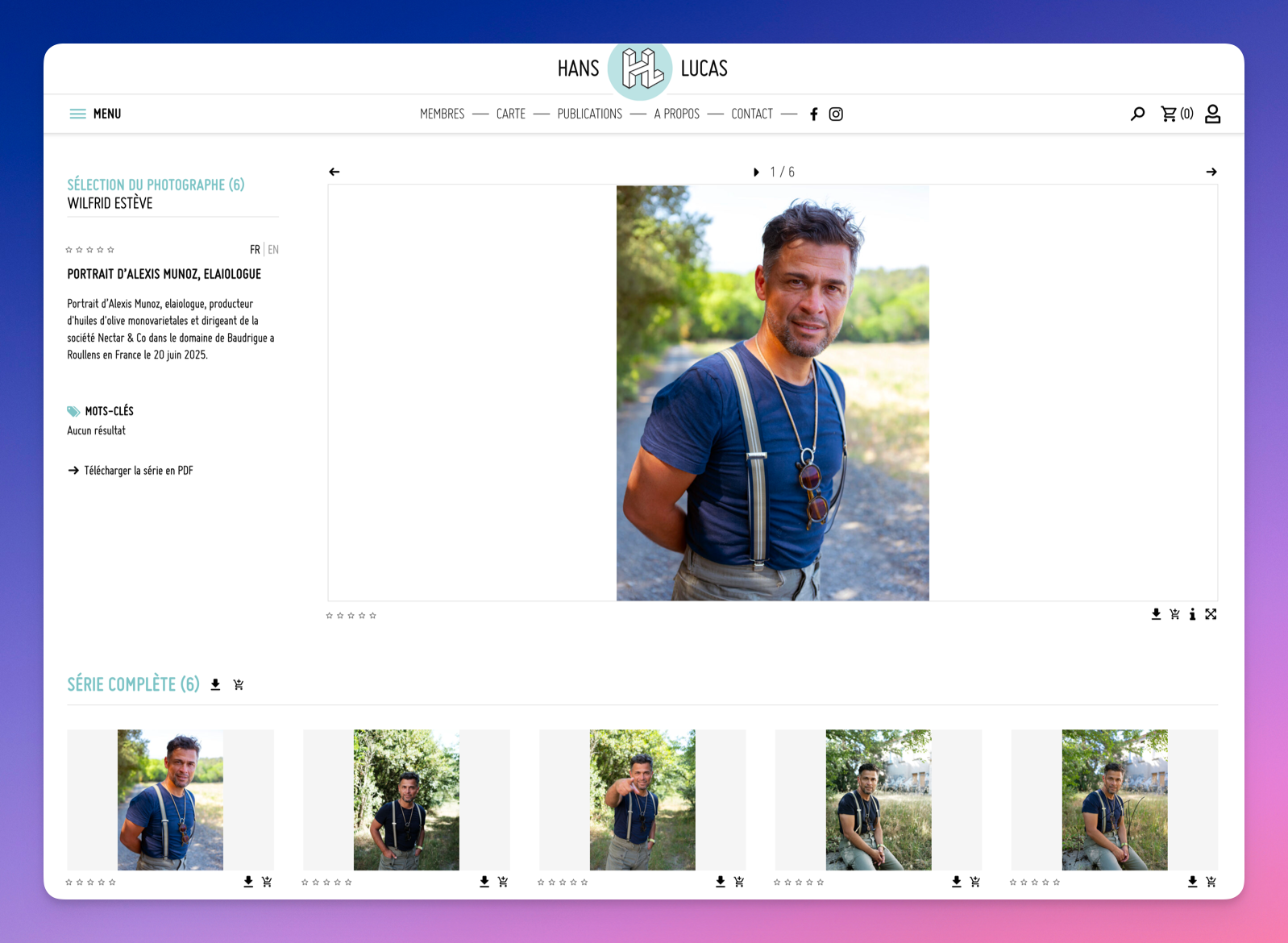
Links between MDALL and distributors
When you import an image into MDALL, the software reads its metadata and copies this information into MDALL’s database. The image information then exists in two places:
- In the metadata of the HD image, which will later be exported to the distribution servers.
- In the MDALL database, which allows Odyssey (and iconographers using Odyssey) to find the image among the 2.5 million images.
It is important to be careful with any changes made after import. If you want to modify fields, you must do it in MDALL on the image edit page, and also in the image’s metadata if you plan to export the image to servers with those metadata changes.
Importing images
To import your images into a series, you have two options.
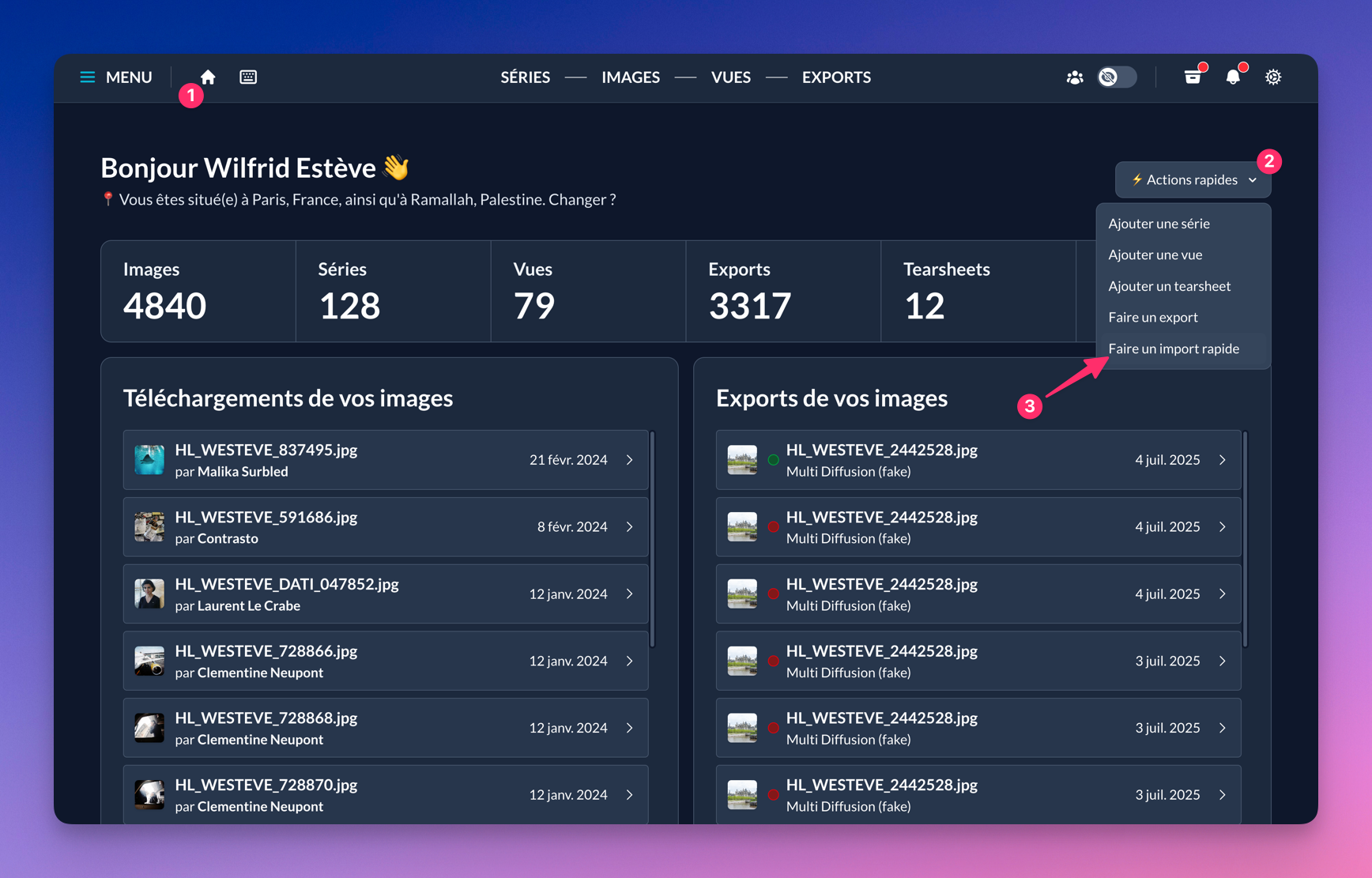
Quick import
Use the quick import system from the dashboard, or go directly to mdall.hanslucas.com/import.
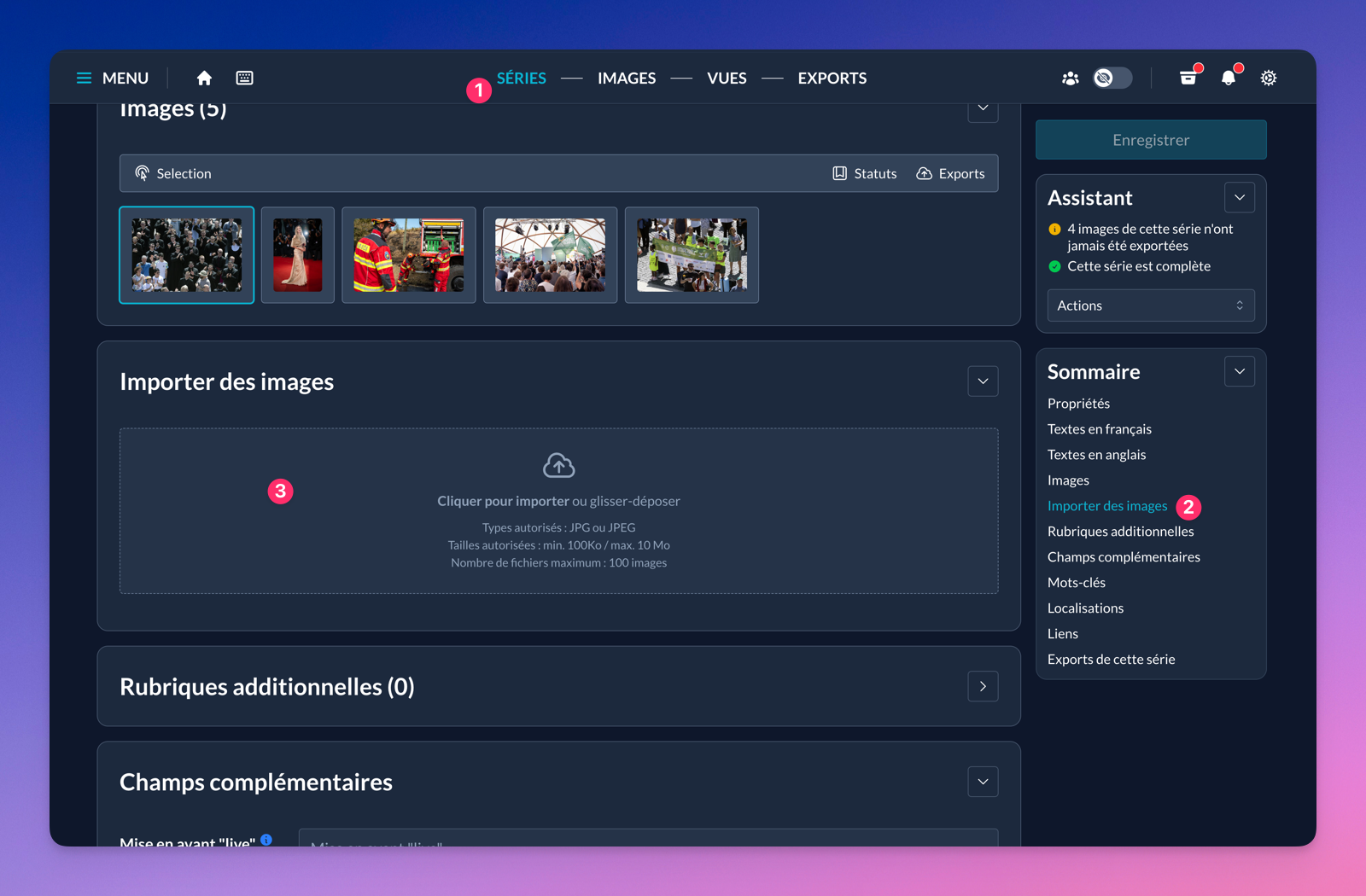
Import module via a series
Navigate to the series you want and use its image import module.
Editing an image
Activation
Determines whether the image is visible on the public site and accessible to iconographers. A disabled image remains visible in your personal MDALL space but does not appear in public search.
Shooting date
The date the photograph was taken.
Series
Defines the series to which the image belongs. This link determines the editorial context and the image’s visibility according to the parent series settings.
Status
The image status defines its usage conditions and how it’s presented on the public site hanslucas.com. Main statuses include:
- Normal: Image visible and available for download
- Non-downloadable: Image visible but cannot be downloaded
- Off slide: Image not visible in the series gallery, but included when the client downloads the series contact sheet
- Non-downloadable and off slide: Image not downloadable and only visible in the contact sheet
- Exclu X: If the series has “Exclusive series” enabled, you can set the image’s position in the series excerpt shown to visitors. You can assign up to 8 images in the “Exclu” selection.
HD file & Metadata
This section relates to the HD file and its metadata—the .jpg you imported into the series. You will find usual information like size, filename, and the date of import.
You can:
- View the image: by clicking the preview
- Download the HD file: direct access to the high-resolution file
- Replace the HD file: update the image (warning: irreversible)
- Edit metadata: correct embedded metadata
Image name (French and English)
This field mirrors the “Title” and “Headline” metadata fields of the image and follows IPTC constraints. See: Title & Headline.
Image caption (French and English)
This field mirrors the “Description” metadata field and follows IPTC constraints. See: Description.
City (French and English)
This field mirrors the “City” metadata field and follows IPTC constraints. See: Location.
Country (French and English)
This field mirrors the “Country” metadata field and follows IPTC constraints. See: Location.
Keywords
This field mirrors the “Keywords” metadata field and follows IPTC constraints. See: Keywords.
Location
Each image can be associated with one or more precise geolocation points. These data are not currently used by Hans Lucas or Odyssey, but may be in the future.
Links
You can associate external or internal links to each image:
- External links: websites, press articles, social media
- Internal links: other series or MDALL content
- Contextual links: sources, references, deeper reading
Views
Views let you organize your images by different themes or clients. The same image can belong to multiple views at once, offering flexibility in presenting your work. Use this field to associate or dissociate your image from your views.
Downloads of this image
MDALL keeps a detailed history of all downloads of your images:
- Date and time of download
- Downloader identity (iconographer, client)
- Type of file downloaded (HD, web, etc.)
- Declared usage context
- Any comments
Exports of this image
All automatic distributions of your images via partner FTP servers are tracked:
- Export destination (agency, client)
- Date and status of the send
- Exported format and resolution
- Any failures and their causes
Advanced management
Smart assistant
The MDALL assistant helps you manage your images by providing information on the quality of the data filled in and the actions you have performed.
Actions
From the image management page, you can perform various actions on your image.
Your images list
You can view all your images on mdall.hanslucas.com/medias.
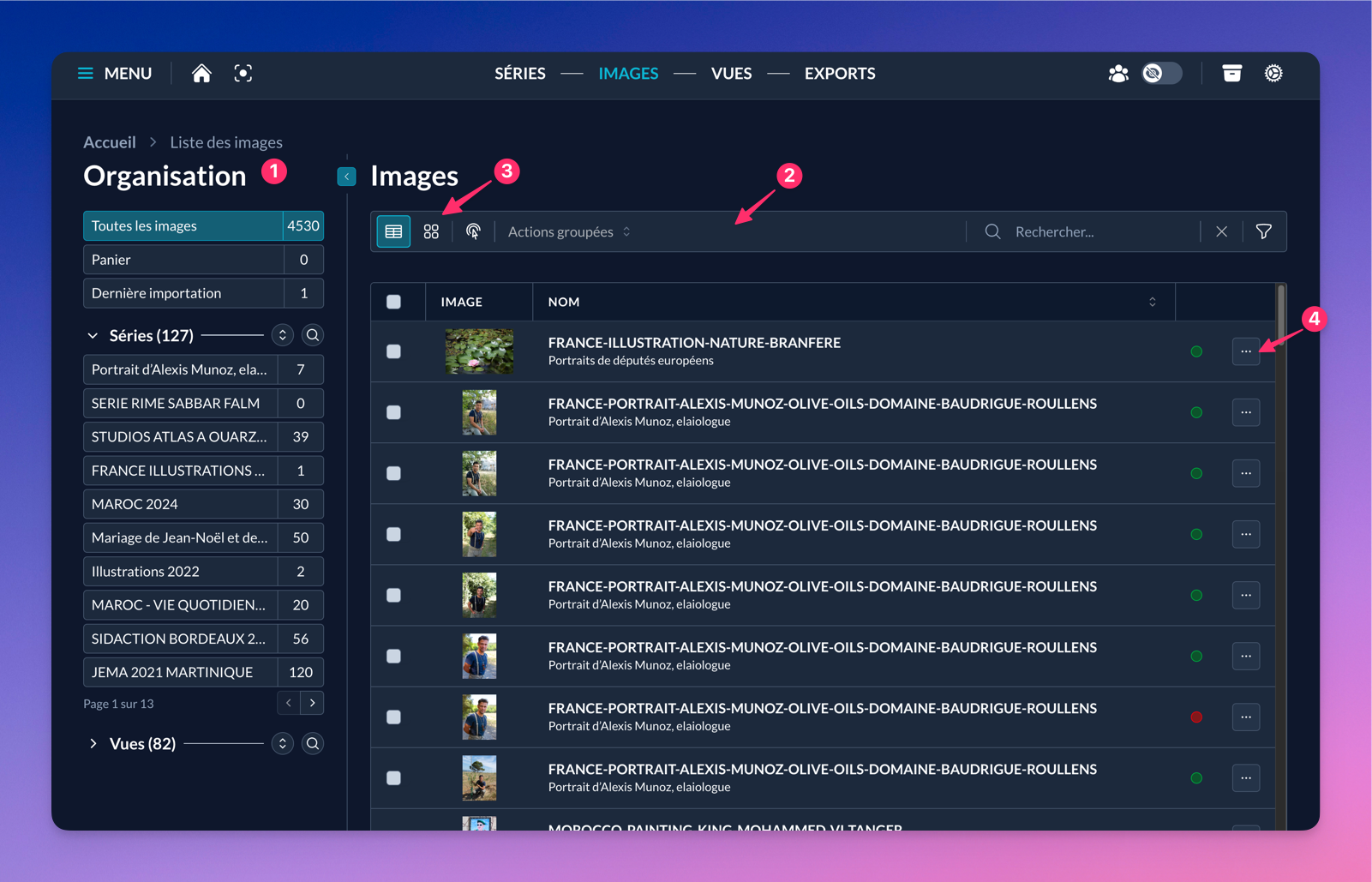
Here’s how the interface is laid out:
- The organization panel lets you filter images by location: Basket, series, views, and the dynamic “last import” section. It also shows the number of images for each selection.
- The filter bar is multi-purpose. It groups action buttons or filters that will affect the displayed images.
- The display mode buttons let you show images in table or grid. Each layout has its own advantages and useful information.
- The per-image action buttons let you manipulate the item or navigate to its edit page.